


Did you know that right now, someone could be monitoring your location, reading your messages, listening to your calls, and watching through your camera — all without your knowledge? Phone tracking and spying is more common than most people realize, and it can happen to anyone.
The good news? There are clear warning signs that your phone is being tracked, and you can stop it completely. In this comprehensive guide, I'll show you exactly how to detect phone tracking, identify who is doing it, and permanently stop it — protecting your privacy forever.
⏱️ Reading time: 15 minutes | Privacy protection: Immediate
📋 Table of Contents
- Types of Phone Tracking (Legal vs Illegal)
- 15 Warning Signs Your Phone Is Being Tracked
- How to Check If Phone Is Being Tracked
- How to Find Hidden Spy Apps
- Check Who Has Access to Your Location
- Check App Permissions (Privacy Audit)
- How to Stop Phone Tracking Completely
- How to Secure Your Phone After Tracking
- When Phone Tracking Is Legal
- FAQ Section
🔍 Types of Phone Tracking (Legal vs Illegal)
Not all phone tracking is illegal. Understanding the difference helps you identify what's happening:

| Type | Examples | Legal? |
|---|---|---|
| Government surveillance | Law enforcement with warrant | ✅ Legal (with warrant) |
| Parental monitoring | Parents tracking child's phone | ✅ Legal (minor's device) |
| Employer monitoring | Company phone tracking | ✅ Legal (company device) |
| Spouse/partner spying | Jealous partner installing spy apps | ❌ Illegal |
| Stalkerware | Stalker tracking victim's location | 🚨 Illegal (criminal) |
| Commercial tracking | Apps tracking for advertising | ⚠️ Gray area |
| Hacker spyware | Criminal malware on device | 🚨 Illegal (criminal) |
⚠️ 15 Warning Signs Your Phone Is Being Tracked
These are the most common indicators that someone may be monitoring your phone:

Battery & Performance Signs:
Sign 1: Battery Draining Unusually Fast 🔋
Spy apps run constantly in background, monitoring your calls, location, and messages. This consumes massive battery power.
What to check: Settings → Battery → Battery Usage → Look for unknown apps using 10%+ battery
Sign 2: Phone Gets Hot When Idle 🌡️
If your phone heats up when you're not using it, something is running in background. Spy apps process and transmit data continuously, generating heat.
Sign 3: Phone Slower Than Usual 🐌
Monitoring software uses CPU and RAM constantly, making phone sluggish even for simple tasks like making calls or opening apps.
Data & Network Signs:
Sign 4: Unexplained High Data Usage 📊
Spy apps transmit your data (location, calls, messages, photos) to remote servers. This shows up as unexpected data consumption.
How to check: Settings → Connections → Data Usage → Look for apps with unexpectedly high data
Sign 5: Phone Activity When on Standby 💡
Screen lights up, status bar shows data activity, or phone makes noises when it should be idle. Spy apps sending data show as brief network activity.
Sign 6: Strange Texts or Codes Received 📨
Some spy apps communicate via encoded SMS messages. You might receive texts with random numbers/symbols — these could be commands sent to spy app.
Phone Behavior Signs:
Sign 7: Clicking/Static Sounds During Calls 📞
Unusual background noises during phone calls (clicking, static, faint voices) can indicate call recording or interception.
Sign 8: Camera/Microphone Indicators Appearing Unexpectedly 📷
Android 12+ shows green dot when camera or microphone is active. If you see these when NOT using them, an app may be secretly accessing them.
Sign 9: Screen Turns On Without Touching 📱
Phone lights up randomly without notifications or user interaction. Some spy apps remotely activate the device.
Sign 10: Apps You Didn't Install 🔍
Finding apps in your app list that you don't recognize or remember installing. Spy apps often disguise themselves with innocent names like "Sync Service" or "System Manager."
Account & Security Signs:
Sign 11: Accounts Logged In From Unknown Devices 🔐
Check your Google, Gmail, and social media account activity. Unknown login locations indicate someone has your credentials.
Sign 12: People Know Things You Never Told Them 🤫
If someone knows about conversations you had privately, places you visited, or things you searched — someone is monitoring you.
Sign 13: Unexpected Phone Bills 💰
Higher than normal data charges, or calls/texts you don't remember making, can indicate unauthorized background activity.
Sign 14: Phone Takes Longer to Shut Down 🔄
Spy apps need to properly close their processes before phone shuts down. Unusually long shutdown times can indicate hidden background processes.
Sign 15: Google Play Protect Shows Warnings 🛡️
Google Play Protect regularly scans for harmful apps. If you receive "Harmful app detected" warnings, take them seriously immediately.
⚠️ How Many Signs Do You Have?
- 0-2 signs: Probably not being tracked. Normal phone behavior.
- 3-4 signs: Possible tracking. Run diagnostic checks below.
- 5+ signs: High probability of tracking. Act immediately!
🔎 How to Check If Phone Is Being Tracked
Follow these steps to verify if tracking is happening:

Check 1: Review Battery Usage
- Go to Settings
- Tap Battery or Battery and Device Care
- Tap Battery Usage
- Look for:
- Apps you don't recognize
- System apps using more than 5-10% (suspicious)
- Unknown services with high usage
Check 2: Review Data Usage
- Settings → Connections → Data Usage
- Tap Mobile Data Usage
- Set time period to "Last 30 days"
- Look for:
- Apps using data you don't recognize
- Any app using unexpectedly high data
- "Background data" usage from unknown apps
Check 3: Look for Green/Orange Dots
Android 12 and above:
- Swipe down notification panel
- Look at top right of screen
- Green dot = camera or microphone currently active
- Orange dot = microphone is being used
- If dots appear when you're not on call or using camera → something is secretly accessing them!
Check 4: Review Active Sessions in Google Account
- Open browser
- Go to myaccount.google.com
- Tap Security
- Scroll to Your devices
- Review all devices logged into your Google account
- Tap Manage devices
- If you see unknown devices → sign out from all and change password immediately
Check 5: Check for Unknown Administrator Access
- Settings → Biometrics and Security (or Security)
- Tap Device Admin Apps or Phone administrators
- Review list
- You should only see:
- Google Pay
- Find My Device
- Exchange (if work email)
- Any unknown apps with admin access are extremely suspicious
Check 6: Run Google Play Protect Scan
- Open Google Play Store
- Tap your profile icon
- Tap Play Protect
- Tap Scan
- Wait for scan to complete
- Review any harmful apps detected
Check 7: Check USSD Code for Tracking
These codes reveal information about call/message forwarding:
- Open Phone dialer
- Dial
*#21#→ Shows if calls/messages/data are being forwarded - Dial
*#62#→ Shows where calls are forwarded when phone unreachable - Dial
##002#→ Disables ALL call forwarding - If any forwarding is active that you didn't set up → someone may have redirected your calls
🔍 How to Find Hidden Spy Apps
Spy apps are designed to be hidden. Here's how to find them:
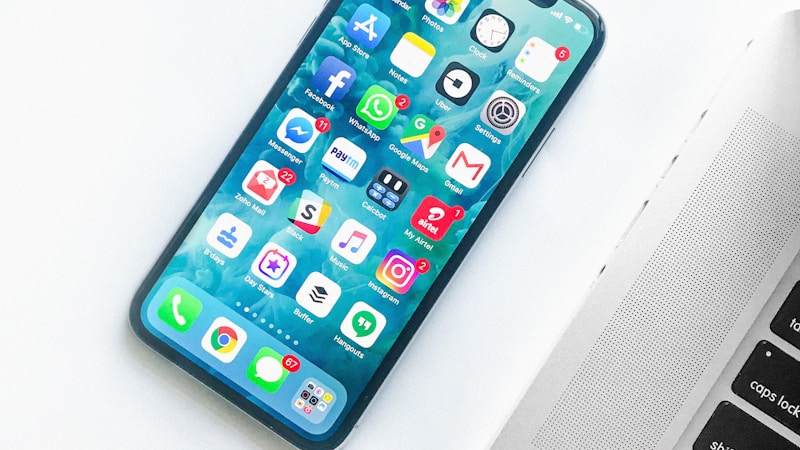
Method 1: Check All Installed Apps (Including System)
- Settings → Apps
- Tap three dots (⋮) → Show System Apps
- Look for apps with:
- Generic names ("Sync Service", "System Manager", "Phone Monitor")
- No icon or generic Android icon
- No clear description
- Installed recently without your knowledge
- Tap suspicious app → Check "App info"
- Look at permissions granted → Location + Microphone + Camera + SMS = very suspicious
Method 2: Check App Permissions for Suspicious Access
- Settings → Privacy → Permission Manager
- Tap each sensitive permission:
- Location
- Microphone
- Camera
- SMS
- Contacts
- Review every app with access
- Remove access for any suspicious or unknown apps
Method 3: Use Anti-Spyware Apps
These trusted apps can detect hidden spyware:
1. Malwarebytes (Free - Highly Recommended)
- Download from Play Store
- Run full scan
- Detects spyware, stalkerware, malware
- Free version covers essentials
2. Kaspersky Security (Free Version Available)
- Excellent spyware detection
- Real-time protection
- Detects stalkerware specifically
3. Certo Mobile Security (Specialized)
- Specifically designed to detect stalkerware
- Used by domestic abuse organizations
- Identifies monitoring apps
Method 4: Boot into Safe Mode (Test)
- Hold Power button → Tap and hold "Power off"
- Select Safe Mode
- In Safe Mode, third-party apps (including spy apps) are disabled
- Monitor battery usage and performance for 30 minutes
- If battery drain and heat significantly reduce in Safe Mode → a downloaded spy app is causing it
Common Spy App Names to Look For:
| App Name | What It Does | Risk Level |
|---|---|---|
| mSpy, FlexiSpy | Complete phone monitoring | 🔴 Very High |
| SpyHuman, Hoverwatch | Location + message tracking | 🔴 High |
| "Sync Manager", "Device Health" | Disguised spy apps | 🔴 High |
| AhMyFamily, Find My Kids | Location tracking | 🟡 Medium |
📍 Check Who Has Access to Your Location
Location sharing is the most common form of phone tracking:

Check Google Maps Location Sharing:
- Open Google Maps
- Tap your profile icon
- Tap Location sharing
- Review WHO you are sharing location with
- If you see people you don't recognize or didn't intentionally share with → Stop sharing immediately
Check Google Account Location History:
- Go to myaccount.google.com
- Click Data & Privacy
- Scroll to Location History
- If enabled, Google knows everywhere you've been
- Consider pausing if privacy is concern
Check Find My Device:
- Settings → Biometrics and Security → Find My Mobile (Samsung)
- Or: Settings → Security → Find My Device
- Review who can access your device's location
- Make sure only YOUR Google/Samsung account has access
Check Family Sharing / Google Family Link:
- Open Family Link app
- Or: myaccount.google.com → Family
- Check if your account is being managed by someone else
- Adults should NOT have Family Link managing their account without consent
Review App Location Permissions:
- Settings → Location
- Tap App Permissions
- Review every app with location access:
- "Allow all the time" = Can access location even when app is closed
- "Allow while using" = Only when app is open
- "Denied" = No access
- Remove "Allow all the time" from any suspicious apps
- Navigation apps (Google Maps, Waze)
- Find My Device
- Fitness trackers (if you want continuous tracking)
- Apps YOU consciously chose for location features
🔐 Check App Permissions (Full Privacy Audit)
Conduct a complete privacy audit of your phone:

Complete Permission Audit:
- Settings → Privacy → Permission Manager
- Go through each category and ask: "Does this app need this permission?"
| Permission | Who Legitimately Needs It | Red Flag |
|---|---|---|
| Location | Maps, weather, delivery apps | Games, flashlight, calculator |
| Microphone | Phone, voice recorder, Google Assistant | Shopping apps, news apps |
| Camera | Camera app, QR scanner, video calls | Weather app, music player |
| Contacts | Phone, WhatsApp, email | Games, flashlight apps |
| SMS | Default messaging app only | Most other apps — suspicious! |
| Call logs | Phone app only | Almost any other app — very suspicious |
Privacy Dashboard (Android 12+):
- Settings → Privacy
- Tap Privacy Dashboard
- See a timeline of which apps accessed your:
- Location
- Camera
- Microphone
- Review last 24 hours of access
- Any unexpected accesses are red flags
🛑 How to Stop Phone Tracking Completely
Once you've identified tracking, here's how to stop it:

Step 1: Remove Spy Apps
- If you found suspicious apps in your audit
- Settings → Apps → Select suspicious app
- First check Device Admin access:
- Settings → Security → Device Admin Apps
- Deactivate suspicious app as admin first
- Then: Settings → Apps → App → Uninstall
- Run Malwarebytes scan after to confirm removal
Step 2: Remove Device Administrator Access
- Settings → Security → Device Admin Apps
- Review all apps with admin access
- Tap any unknown app
- Tap Deactivate
- This removes their ability to resist uninstalling
Step 3: Stop Location Sharing
- Google Maps → Profile → Location Sharing → Stop sharing with everyone you don't trust
- Settings → Location → Turn OFF location for all suspicious apps
- Settings → Location → Turn OFF location entirely (most secure)
Step 4: Disable Call Forwarding
- Open Phone dialer
- Dial
##002# - This disables all call forwarding
- Confirm by dialing
*#21#→ should show "Not Active"
Step 5: Change All Passwords
If your accounts were compromised:
- Google Account: myaccount.google.com → Security → Password
- Email: Change password immediately
- Social media: All platforms
- Banking: Any financial apps
- Enable Two-Factor Authentication (2FA) on all accounts
Step 6: Sign Out of All Unknown Sessions
- myaccount.google.com → Security → Your Devices
- Click Manage all devices
- Sign out from any device you don't recognize
- Click Security → Review your devices
Step 7: Factory Reset (Nuclear Option)
If spy app won't uninstall or you're not sure you've found everything:
- Backup all personal data first (Google Photos, contacts, etc.)
- Settings → General Management → Reset → Factory Data Reset
- This completely eliminates all spy apps
- After reset → Change all passwords before installing any apps
- Be careful what you reinstall (the spy app may have come from an app you downloaded)
🔒 How to Secure Your Phone After Tracking
After removing tracking, harden your phone against future attacks:

Immediate Security Steps:
- ✅ Change phone PIN/password to something only YOU know
- ✅ Enable biometrics (fingerprint + face ID)
- ✅ Enable Google Play Protect (auto-scans for malware)
- ✅ Update Android to latest version
- ✅ Enable 2FA on Google account
- ✅ Review and revoke suspicious app permissions
- ✅ Enable Find My Device (so YOU can track your phone)
- ✅ Never leave phone unattended with people you don't trust
Long-term Privacy Settings:
1. Review Location Settings:
- Settings → Location → App Permissions
- Set all non-essential apps to "Denied"
- Only maps and navigation = "Allow while using"
2. Enable Enhanced Protection:
- Settings → Privacy → Send Diagnostic Data → Disable
- Settings → Privacy → Ads → Reset Advertising ID
- Settings → Privacy → Personalization Service → Disable
3. Review Account Access:
- myaccount.google.com → Security → Third-party apps with account access
- Revoke access for any apps you don't use or recognize
4. Enable USB Restricted Mode:
- Settings → Developer Options → Default USB Configuration
- Set to No Data Transfer
- Prevents unauthorized data extraction via USB
⚖️ When Phone Tracking Is Legal
Understanding legal tracking helps you recognize when concerns are unfounded:

Legal Tracking Scenarios:
Parents Monitoring Children:
- Legal for minors (under 18)
- Should ideally be done with child's knowledge
- Common apps: Google Family Link, Life360
Employers Monitoring Company Phones:
- Legal if device belongs to company
- Must be disclosed in employment contract
- Cannot legally track personal phone without consent
Consensual Location Sharing:
- Google Maps location sharing (both parties consent)
- Life360 family groups (all members agreed)
- Find My Device (your own device)
Illegal Tracking (Report to Authorities):
- 🚨 Partner secretly installing spy app without knowledge
- 🚨 Stalker tracking your location without consent
- 🚨 Someone accessing your accounts without permission
- 🚨 Criminal malware stealing your data
- 🚨 Employer tracking your personal device
If you're in an abusive situation:
- Contact National Domestic Violence Hotline
- Use a safe device (library computer) to seek help
- Contact law enforcement
- Don't confront abuser about tracking discovery
❓ Frequently Asked Questions (FAQ)
Q1: Can someone track my phone without installing anything?
A: Yes, in several ways:
- Your Google account location history (if you're logged into their device)
- Carrier-level tracking (through your mobile provider)
- IMSI catchers (used by law enforcement)
- IP address tracking (when using their WiFi)
- Social media location tags (if you share them)
Q2: Can my phone be tracked when turned off?
A: Modern iPhones can be tracked even when off (via Bluetooth). Android phones generally cannot be tracked when completely powered off. However, when you turn it back on, your location is immediately known. Remove SIM and battery (if removable) for maximum privacy.
Q3: Can I tell if my phone is being tracked by police?
A: Generally no. Law enforcement uses legal means (warrants for carrier data, IMSI catchers) that leave no trace on your device. If you're suspected of a crime, carrier records show your cell tower history regardless of phone state.
Q4: How did a spy app get on my phone?
A: Common ways:
- Someone with physical access to your unlocked phone installed it
- You installed it unknowingly (disguised as useful app)
- Malicious link clicked (phishing attack)
- Downloaded APK from unofficial source
Q5: Does using incognito mode prevent tracking?
A: Incognito mode only prevents your browser from saving local history. It does NOT prevent:
- Your ISP from seeing your activity
- Websites from tracking your IP
- Spy apps on your device from monitoring activity
- Network-level monitoring
Q6: Can WhatsApp messages be intercepted?
A: WhatsApp uses end-to-end encryption, making message interception extremely difficult for third parties. However:
- If spy app is on your phone, it can read messages BEFORE encryption
- If someone has access to your WhatsApp Web session, they can read messages
- Cloud backups of WhatsApp on Google Drive are NOT end-to-end encrypted (unless you enabled it)
Q7: Will factory reset definitely remove all spy apps?
A: Yes, factory reset removes ALL user-installed apps, including spy apps. However, extremely sophisticated state-sponsored malware (like Pegasus) can survive factory reset. For 99.9% of people, factory reset is the ultimate solution.
Q8: Can social media apps track me?
A: Yes. Facebook, Instagram, TikTok and others:
- Track your location (if permission granted)
- Collect your contacts (if permission granted)
- Track your browsing habits
- Share data with advertisers
Q9: How can I prevent my phone from being tracked in the future?
A: Best practices:
- Use strong, unique PIN (not face ID alone)
- Never leave phone unlocked with others
- Only install apps from Play Store
- Regularly review app permissions (monthly)
- Enable Google Play Protect
- Keep Android updated
- Use trusted VPN when on public WiFi
- Check account activity regularly
Q10: My partner wants to track my phone. Is that acceptable?
A: Healthy relationships are built on trust. Consensual location sharing (both parties agree, both can see each other) is different from one-sided surveillance. If your partner:
- Secretly installs monitoring apps
- Demands to read all your messages
- Controls who you can contact
🔐 Quick Privacy Audit Checklist
📋 10-Minute Privacy Audit (Do This Now):
Check Right Now:
- ☐ Open Google Maps → Check location sharing list
- ☐ Settings → Battery Usage → Any unknown apps?
- ☐ Settings → Apps → Review for unknown apps
- ☐ Settings → Privacy → Permission Manager → Review location, mic, camera access
- ☐ Settings → Security → Device Admin Apps → Any unknown?
- ☐ Dial *#21# → Any call forwarding active?
- ☐ myaccount.google.com → Review devices logged in
- ☐ Play Store → Play Protect → Run scan
Secure Right Now:
- ☐ Change Google account password if suspicious activity
- ☐ Enable 2FA on Google account
- ☐ Revoke unknown app permissions
- ☐ Dial ##002# to disable call forwarding
🎯 Final Thoughts
Phone tracking is a serious privacy violation that affects real people every day. The good news is that Android provides powerful tools to detect, stop, and prevent tracking — if you know where to look.
✅ Key Takeaways:
- 🔋 Main signs: Unusual battery drain, heat when idle, unknown data usage
- 🔍 Key checks: Battery usage, app list, device admins, call forwarding codes
- 🛑 Removal: Uninstall spy apps, disable call forwarding, change passwords, factory reset if needed
- 🔒 Prevention: Strong PIN, Play Protect enabled, regular permission audits
- 🆘 If in danger: Contact law enforcement, domestic violence resources
Do you think your phone is being tracked? Share your experience in the comments. We're here to help!
Did this audit reveal anything concerning? Tell us below and we will help you remove it!
Last updated: 2026 | Works on Samsung Galaxy, Xiaomi, OnePlus, Google Pixel, Realme, Motorola, and all Android phones running Android 8.0 and above
📚 More Privacy & Security Guides:
- 10 Privacy Settings You Must Turn On in Android Right Now
- How to Remove Virus From Android Without Factory Reset
- Android Secret Codes That Unlock Hidden Phone Menus
- How to Backup Android Phone Completely (2026 Guide)
- 10 Hidden Samsung Settings You Should Turn On Immediately